

1. Go to the web version of your app and then add on the suffix: /manage/users/push/send/. This will take you to a login screen if you have not recently logged in. Login if asked. It is helpful to bookmark this page on your computer/phone.
Example: https://siouxfallsapp.engagedencounter.com/manage/users/push/send/
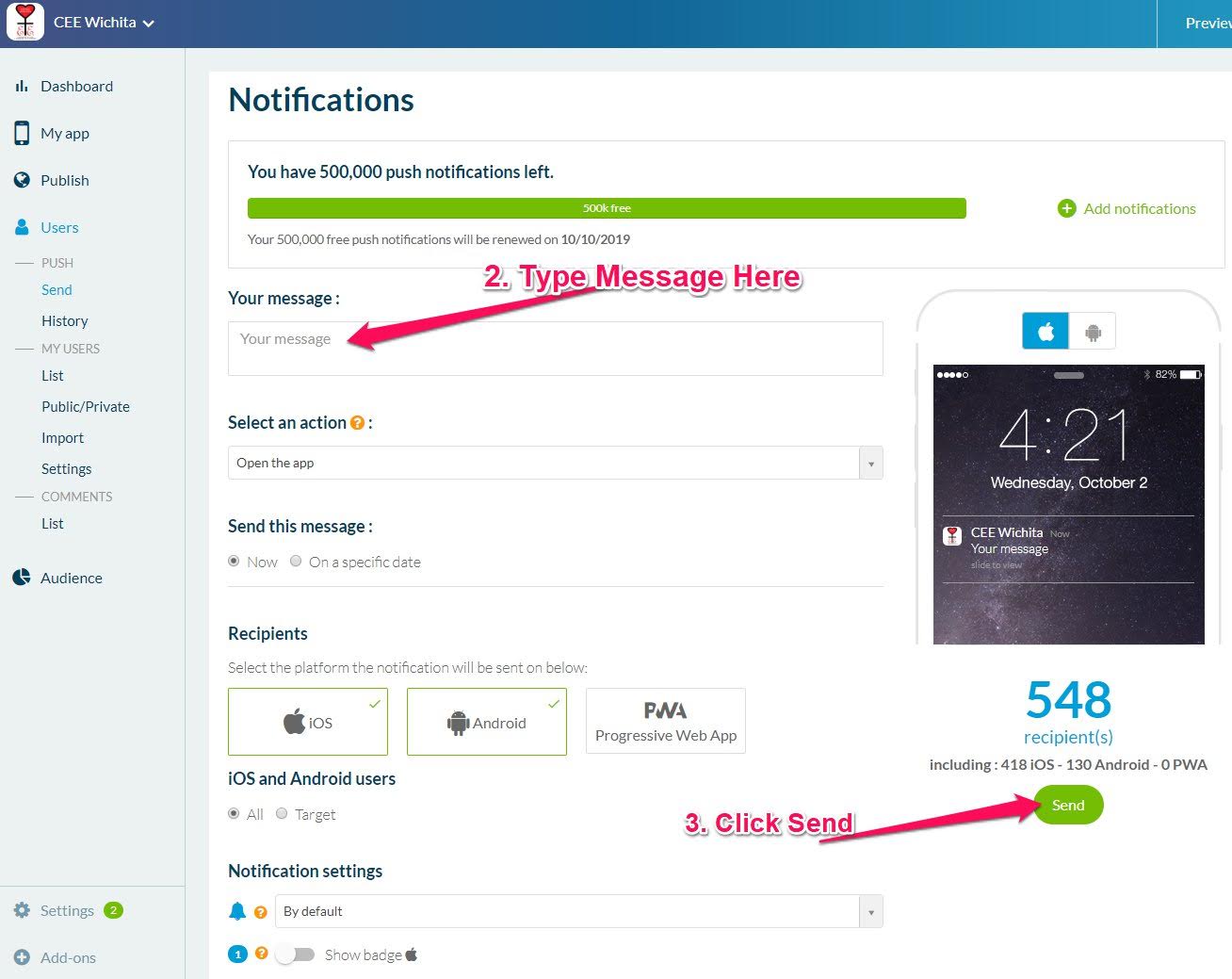
2. Type message in the box highlighted
3. Click Send to deliver the typed message to all devices with the App installed.
click image to enlarge
If messages don't go through usually it is because of one of the following:
1. Data couldn't go through because of poor WiFi going in and out
Solution: Turn off Wifi and see if mobile network does better
2. Data couldn't go through because mobile network is not strong enough
Solution: Turn on WiFi and connect to a local network
3. Notification turned off for the App.
Solution: Depending on the type of phone, check notification settings for the type of App and turn them back on. For Android see the section called "Turn notifications on or off for certain apps" on this page: https://support.google.com/android/answer/9079661?hl=en. For Apple: see "Change alert styles" section on: https://support.apple.com/en-us/HT20192
4. Phone notifications are all silenced.
Solution: Turn off silenced mode.