


(Video is at bottom of this article)
1. Go to the Image Manager from the Control Panel
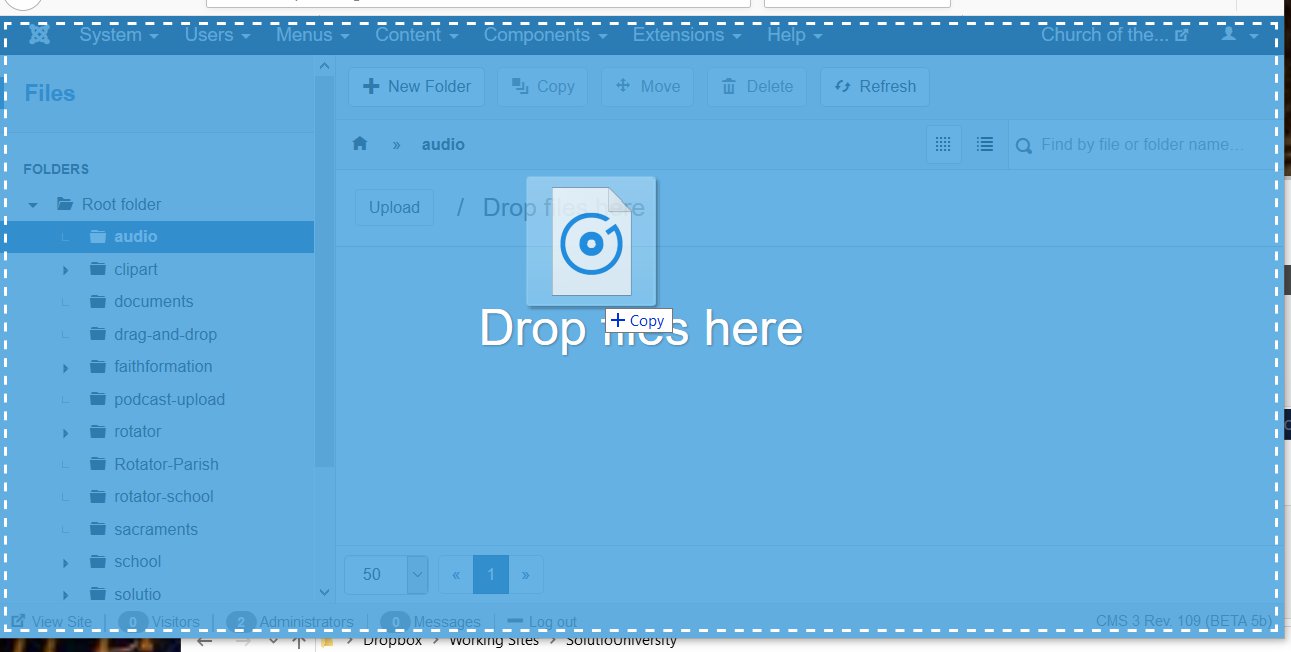
2. Select a folder (on the left) to upload to. Click and drag mp3 file into this folder.
 3. Create a new article and put in the Title, Category and the body of the article. Click View Source < > or the Toggle Editor button to view the article in HTML mode.
4. Place in the code from the grey box below replacing the yellow part with the file path and name you uploaded in step 2: The root folder is stories. Therefore, if the file called homily10072015.mp3 is in a folder called media inside the root folder, the new file path in yellow should become media/homily10072015.mp3
|
<p><audio controls preload="metadata"> <p><a href="/images/stories/audio/bishop-conley/TCC195.mp3">Right click here to download</a></p> |
5. Save your article and check to make sure it streams. If it doesn't go, it is probably because the path is not right to your file.