
-
Help Topics

- Rotators
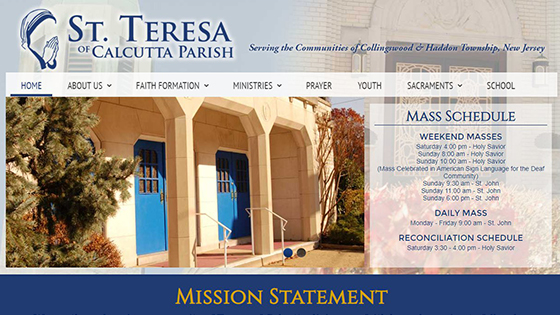
Rotator - RokSprocket with Articles - Change Images
1. Find the image size
You can do this by opening the image in a new tab or dragging the image to your desktop
2. Use Gimp program to resize and crop
I usually start by resizing the width and then using the crop tool to reduce the height the correct size.
3. Add a new article
Make sure to set the category to the one that displays in your rotator
4. Add an image to the article
This setting is under "Images and links" area (on the right side of the article editor) under "Full article image."
5. Save
You are all done. Make sure to check out your work!
Resize Rotator Image Using Canva
Adding a new rotator image usually means editing the image to the uniform dimensions for your site. Here's how!
Adding a New Rotator Image
Updating the Rotator is a great way to make your site visually engaging.
Adding an Image to a Mass Times Rotator
Are you wondering how to add an image to your rotator, but have beautiful Mass Times that you want included?
Remove or Add Title, Description or Link on Rotator
Depending on your Rotator's default settings, you may want to remove or add the Rotator Article's title, description, or link/button.
